Message Node
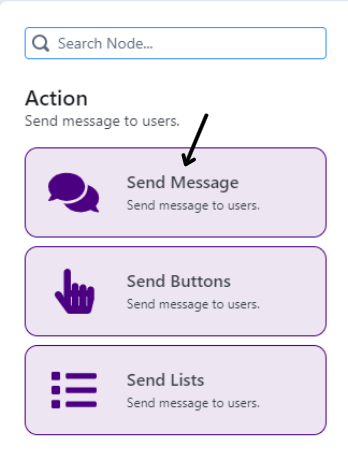
This node is for the bot to output messages to users. (Diagram 8)
Node Name
| Title | Description | Type |
|---|---|---|
| Node Name | To set the Node's name | Text Field |
Message
| Title | Description | Type |
|---|---|---|
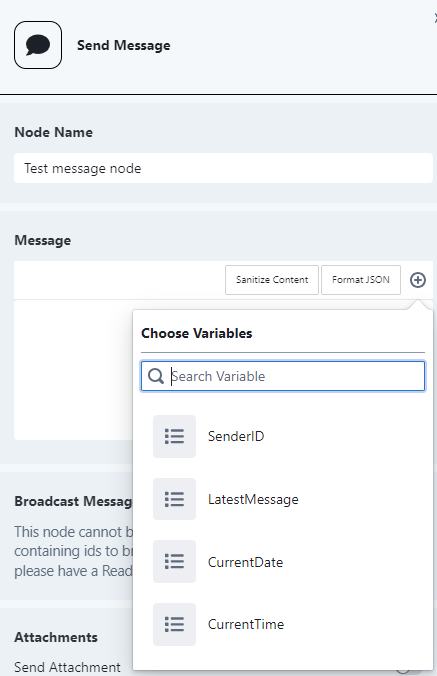
| Message | To set the message that will be sent out to user by the bot. Able to use variables with the “+” Button, Sanitize Content Buttons, and Format JSON buttons. | Text Field with Buttons |
Broadcast Message
info
This feature is only able to toggle on if there is an existing Read Node before it with "Output Options" set to Multiple Row
| Title | Description | Type |
|---|---|---|
| Broadcasting | To set whether this Message Node's contents are to be sent to the current user or other users based on the selected Read Node array | Toggle |
| Broadcast To | To select the Column Title of a Read Node. It returns an array of that column based on the Read Node's filter options. You would usually select a column with valid numbers for this. | Single Select Dropdown |
Attachments
| Title | Description | Type |
|---|---|---|
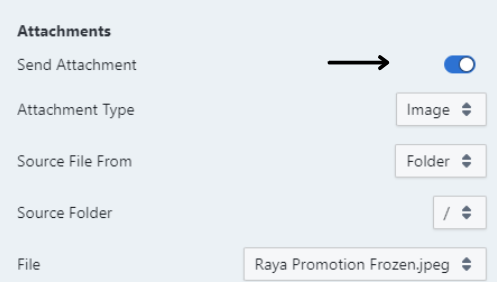
| Send Attachment | To set whether the bot will add attachments of either PDF or Image to the message that will be sent to users. | Toggle |
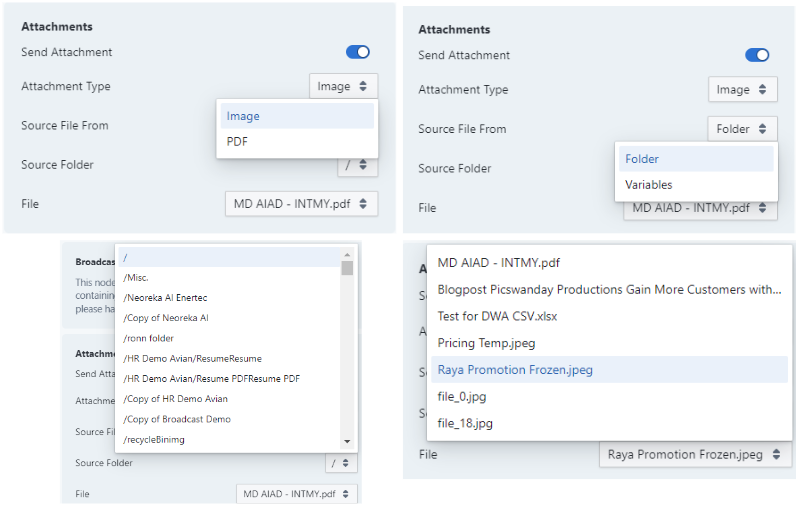
| Attachment Type | To select a file type of either Image or PDF. The type selection here will change the fields below it. (Diagram 10) | Single Select Dropdown |
| Source File From (Image) | To select the source of the Image, whether from a Folder or a Variable. The Source selection will change the fields below it. (Diagram 11) | Single Select Dropdown |
| Source Folder (Image) (Folder) | To select the source folder of the Image. (Diagram 11) | Single Select Dropdown |
| File (Image) (Folder) | To select the attachment that will be sent together with the message. (Diagram 11) | Single Select Dropdown |
| Variable Name (Image) (Variable) | To select the Variable that contains the attachment that will be sent together with the message. (Diagram 11) | Single Select Dropdown |
| Source PDF From (PDF) | To select the Variable that contains the attachment that will be sent together with the message. (Diagram 11) | Single Select Dropdown |
User Reply
| Title | Description | Type |
|---|---|---|
| Wait For Reply | To set whether the bot should wait for a reply or not after sending the contents of this message node. By default, it doesn't wait for any response and will proceed to the next node after it. | Toggle |
| Expected Format | To select the format of response that user will reply to the contents of this message node. Currently Available Formats: 1. Integer 2. String 3. URL 4. Email 5. Long String 6. Image Path 7. Boolean 8. Date 9. Duration 10. Float 11. File 12. PDF 13. Object | Single Select Dropdown |
warning
If "Wait For Reply" is toggled on, and the user responds with a different format than the "Expected Format", the bot will resend this node to force user to reply with the Expected Format